
 May 13,2026
 By:
By: Introduction
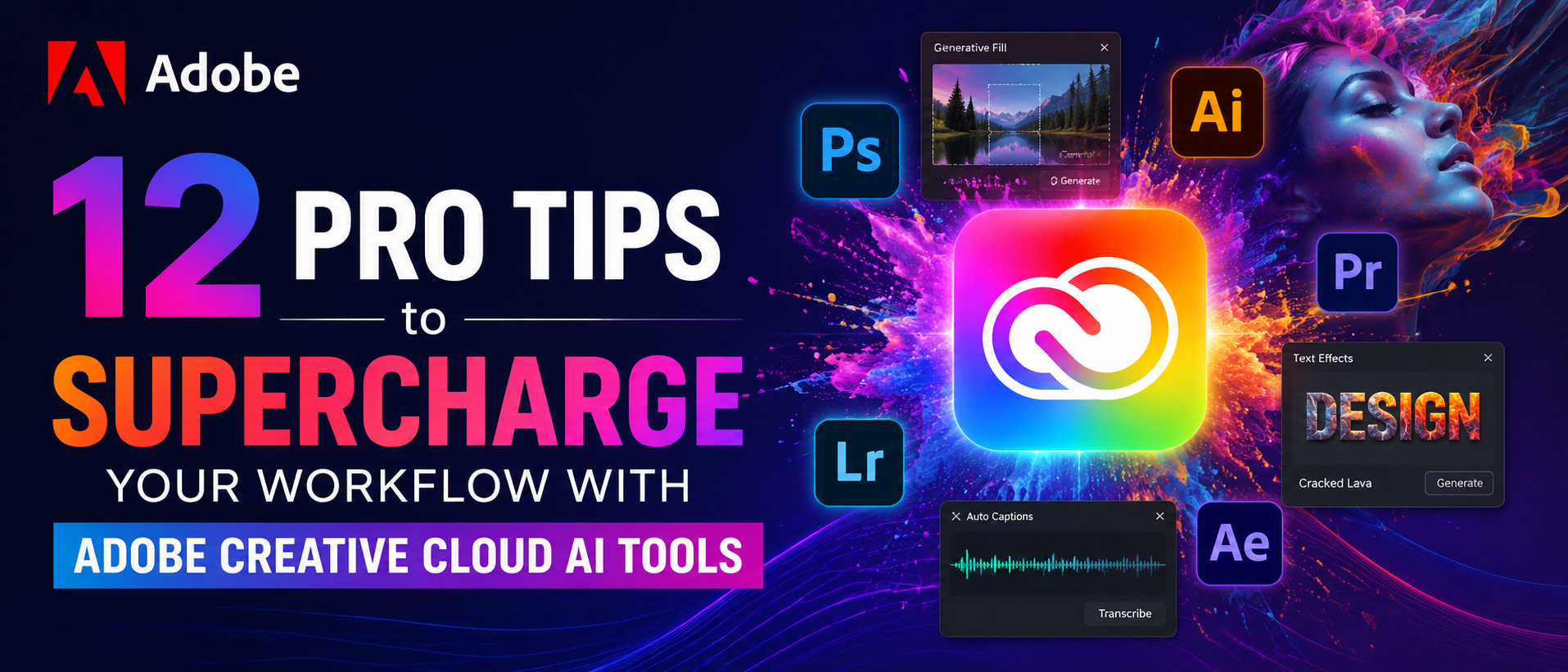
Creative workflows often involve tight production timelines, evolving project demands, and the need for faster execution. When a tool significantly improves efficiency and creative output, it naturally stands out in modern workflows. Adobe Creative Cloud continues to enhance creative workflows through advanced AI-powered tools. From Photoshop generative fill to the growing toolkit inside Adobe Firefly, these features deliver practical value across creative workflows. These tools help streamline time-consuming creative tasks and improve overall productivity. Here are 12 tips that actually work, pulled from real use cases.1. Stop Retouching Manually — Let Photoshop Generative Fill Do the Heavy Work
One notable advantage of Photoshop Generative Fill is its ability to seamlessly reconstruct surrounding details during object removal. You select the area. Type a basic prompt or leave it blank. The AI automatically generates contextually accurate results. Background extensions, object removal, and adding elements that weren't there all happen in seconds. While results may vary depending on the image complexity, the output quality is consistently impressive.2. Write Better Prompts — The Biggest Adobe Firefly Tip Nobody Talks About
Here's the thing about Adobe Firefly—the output is only as effective as the prompt. And more descriptive prompts typically produce richer and more detailed outputs. "A tree" generates a basic result. "A twisted oak tree at dusk, fog rolling in, warm amber light" gives something usable. One of the most practical Adobe Firefly tips is simply slowing down and writing descriptive prompts. Think about mood, lighting, texture, and season. Although it requires additional detail, the improvement in output quality is significant. Try it once, and it's hard to return to simple prompting.3. Use Generative Expand When the Shot Just Isn't Wide Enough
Every photographer has been there—the composition is appealing, but needs more sky, more ground, more space to breathe. Cropping used to be the only fix, and that always meant losing something. With Photoshop generative fill's Generative Expand, the canvas gets extended outward, and the AI fills in what would logically be there. A beach gets a wider horizon. A portrait gets room on either side. Repurposing a square image for a widescreen banner? Done, without cropping a single pixel of the original.4. Make Typography Interesting — Adobe Firefly Text Effects Are Underused
This feature remains one of Adobe Firefly's most versatile creative capabilities. Adobe Firefly's Text Effects tool applies AI-generated textures directly to lettering. Not a filter, not a preset—actual generated material wrapped around the type. Type in "cracked lava" or "dense forest moss," and the letters take on that quality. It may sound ambitious, but for event posters, music artwork, or digital ads, this single tool replaces what used to be a multi-layer compositing job. Proper Adobe Firefly tips are worth bookmarking.5. Premiere Pro's AI Caption Tool Saves More Time Than Expected
Any real Adobe Creative Cloud review has to talk about video. Specifically, Premiere Pro's auto-captions. Upload the video, hit "transcribe," and captions appear synced to every spoken word—even with background noise. highly accurate, and close enough that editing takes minutes rather than hours. Then there's Auto Reframe, which intelligently repositions the subject when changing aspect ratios. One edit, reformatted for YouTube, Reels, and TikTok. That alone justifies the subscription for video creators.6. Lightroom's AI Masking Has Changed How Photo Editing Works
There was a time when selecting a person's hair in Lightroom once required detailed manual adjustments and significant editing time. Now, one click on "Select Subject," and the AI traces every strand, every edge, every stray curl with remarkable precision. Sky selection is the same — it finds the horizon, distinguishes the sky from buildings, and handles tricky lighting. Many Adobe Creative Cloud reviews consider this one of the most time-saving features added in years. Targeted edits that used to take ten minutes now take about eight seconds.7. Layer Content-Aware Fill and Photoshop Generative Fill Together
This workflow technique is especially effective, but it's worth knowing. Start with traditional Content-Aware Fill for larger removals—a power line, a water bottle left in frame, or a stranger who walked into the background. Once the area is cleaned up, switch to Photoshop generative fill to refine details or add something new in that space. The two tools together produce better results than either alone. It's a layered approach, and once that rhythm is found, the retouching workflow genuinely speeds up.8. Batch Processing Is Still One of Adobe Creative Cloud's Most Underrated Features
Not glamorous. Not AI-powered. But Photoshop Actions combined with Adobe Creative Cloud's Bridge for batch processing is one of the most practical workflow tips going. Resize 200 images to web dimensions, apply a consistent colour grade, export with specific naming conventions—while other tasks are being completed. Pair this with Adobe Firefly-generated assets for campaigns and a proper file structure, and even a solo freelancer can manage the output of a small team.9. Adobe Firefly's Generative Match Keeps Brand Visuals Consistent
Brand consistency is one of those things that sounds simple until it's actually time to manage it across 40 different assets. One of the more specific Adobe Firefly tips worth testing is the Generative Match feature. Feed it a reference image—maybe a hero shot from the brand's current campaign—and it generates new content that matches the same visual tone, colour temperature, and mood. New products, new seasonal graphics, new ad formats — all visually cohesive with what already exists. This helps maintain visual consistency across campaigns.10. Adobe Express Is Better Than It Gets Credit For
Most people overlook Adobe Express because it sits next to heavyweights like Photoshop and Illustrator. That's a mistake. For quick social content, newsletter headers, promotional flyers, or client-ready mockups, Express is genuinely fast — and it connects directly to Adobe Firefly for AI-generated visuals on the fly. Any balanced Adobe Creative Cloud review would flag it as the best tool for creators who need polished output without the overhead of a full desktop workflow. Brand kits keep everything consistent. The workflow remains efficient and consistent.11. Generative Recolor in Illustrator Solves the Colour Approval Problem
Client colour approval cycles can often take time. "Can we see it in blue? What about something earthier? What about the original but slightly warmer?" Illustrator's Generative Recolor — built on Adobe Firefly — generates multiple palette variations of any vector artwork from a single text description. Type "warm autumn tones" or "clean tech palette," and it recolors the full illustration instantly. As a featured highlight in many an Adobe Firefly review, this tool cuts presentation prep time considerably. Bring six options instead of two. Providing multiple variations can improve approval efficiency.12. Turn on Auto-Updates — Adobe Drops New AI Features Constantly
This might sound too simple to be a tip. One important point is that from anyone who's done a thorough Adobe Firefly review or a full Adobe Creative Cloud review: Adobe updates these tools constantly. Features that weren't there two months ago are now live. Some are buried in menus; some show up as small banners in the app. Auto-updates through the Creative Cloud desktop app ensure nothing gets missed. Following the official Adobe blog also helps — new Adobe Firefly tips and feature walkthroughs get posted regularly, often before the wider creative community has caught on.Quick Wins Worth Remembering
To sum it up, these are the tools doing the most work right now:- Photoshop generative fill handles the retouching jobs that used to eat up entire afternoons
- Adobe Firefly generates commercially clean visuals—no licensing headaches
- Adobe Creative Cloud connects every tool, so the workflow actually flows
- AI masking, captions, recolor, and batch tools handle the repetitive work, so creative energy goes somewhere more useful
So—Is It Actually Worth It?
Short answer: yes. But only if the tools get used properly. Photoshop generative fill alone can reshape the entire approach to photo editing. Adobe Firefly keeps adding features that solve real workflow problems — not just flashy demos. And the broader Adobe Creative Cloud ecosystem ties everything together in a way that, once it clicks, is genuinely hard to work without. The learning curve is real. The time it takes to build good prompt habits and understand which tool does what — that's real too. But the payoff shows up fast. And for anyone spending serious hours doing creative work, that's nothing.Boost your creativity with AI 🚀🎨
Explore the world of fashion, beauty, lifestyle, and entertainment with Fun & flip – your daily dose of trendy tips, style inspiration, and everything fun, fabulous, and fresh in one place!
Read More Blogs:
Best Low-Cost Certifications To Bridge The Gap To Senior Freelance Rates
Complete Beginner's Guide To Building A Gaming PC In 2026
Adobe Creative Cloud Apps Explained Guide
FAQs
Q1. What is Photoshop generative fill, and how does it work?Ans: Photoshop generative fill uses AI to automatically generate realistic content inside any selected area of an image based on a simple text prompt.
Q2. Is Adobe Firefly safe to use for commercial projects?
Ans: Yes — Adobe Firefly is trained on licensed and public domain content, making all generated assets safe for commercial use.
Q3. Do you need the full Adobe Creative Cloud plan to access Adobe Firefly?
Ans: Adobe Firefly is available across most Adobe Creative Cloud plans, with some features also accessible via a free, limited web version.